The customer portal is a page in your brand where your customers sign in to answer quotes, ask for more work, skip or move a visit, see their plan and pay online. It looks like your business, not ours, and it cuts down on the “did you get my invoice?” and “can you skip us this week?” calls.
The portal is on Growing and up, and during a trial of Growing or higher. If your plan drops below Growing, your customers see Online account access is turned off for your company with a note to call or text you. The pay link in each invoice email still works, so nobody loses a way to pay.
1 Invite a customer
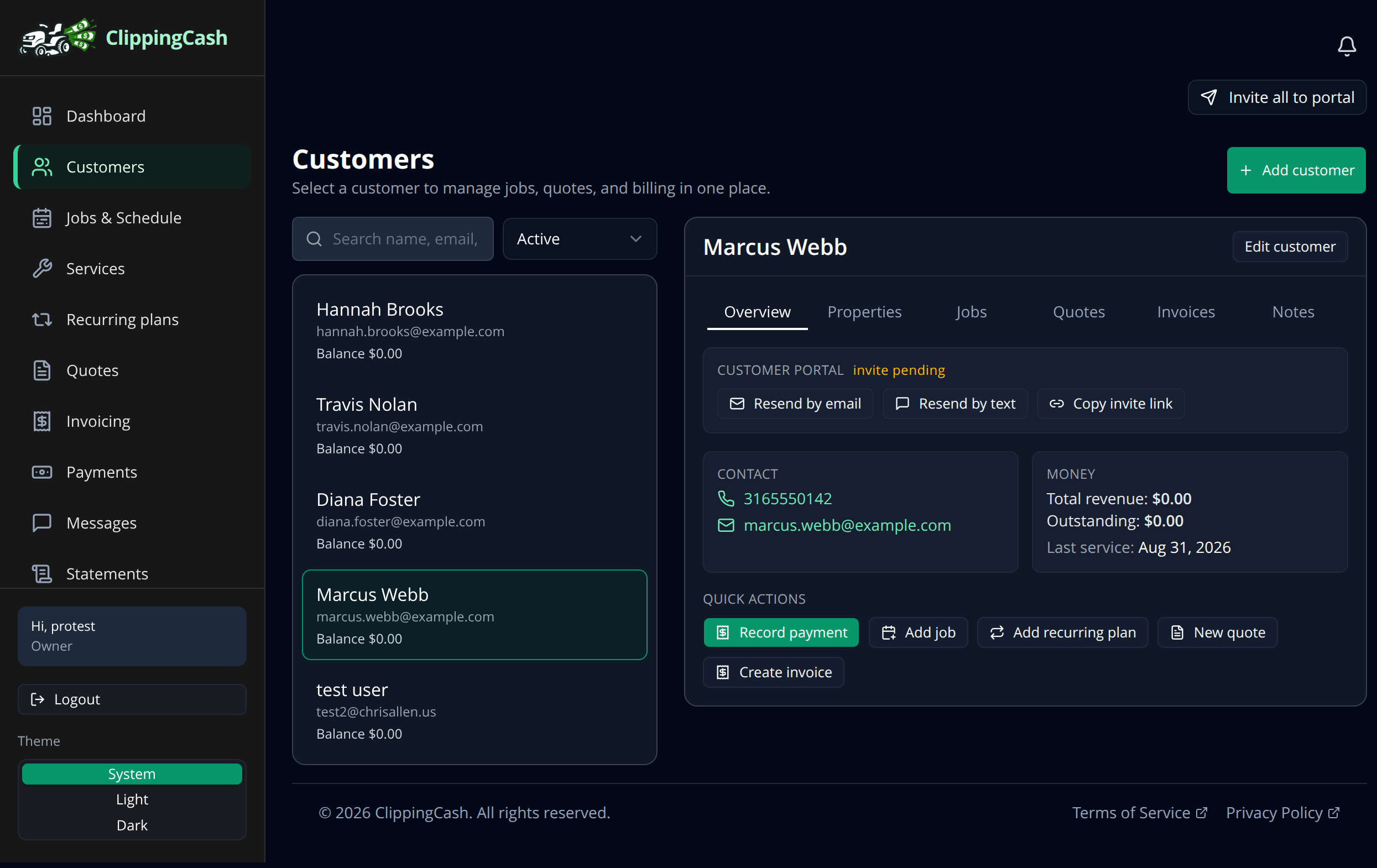
Open Customers and pick a customer. In the Customer Portal section you can invite them by email, by text, or copy an invite link to send however you like. To onboard everyone at once, use Invite all to portal at the top of the Customers page.
2 What your customer sees
When they accept, the customer gets their own portal under your business name, with your logo on every page and your brand color on the buttons. The menu has Quotes, Visits, Request work and My plan next to their invoices, statements and service history, all from a phone browser with no app to install.
Quotes. Every quote you sent them, newest first, under Open and All, with a count of the ones waiting for an answer. A quote opens as the same page your quote email links to: the line items, any Good, Better and Best options, the billing terms and the expiry date. They press approve (picking an option if there is one) or decline, and you are told the same way as when they answer from the email link. Approving does not schedule anything by itself: you still turn the approved quote into work.
Request work. The customer picks the property (when they have more than one), ticks services from your list, adds a note and up to 5 photos (JPEG, PNG or WebP, up to 8 MB each), and sends. The request lands in your Quote requests inbox marked From portal, with the photos, and a Make quote button that starts a quote for that customer and property. On the same page they see their past requests as Waiting for your company, Quote sent (with a link to the quote) or Closed.
Visits. Their upcoming visits for the next 30 days, each with Skip and Ask to move.
- Skip takes the visit off your crew’s list straight away. Before they confirm, the portal tells them what it means for their bill: “You won’t be charged for a skipped visit” when you bill per visit or add up the visits, or “Your plan price stays the same when you skip a visit” on a set monthly or season price. Nothing is credited automatically. A customer can’t undo a skip in the portal; if they change their mind, they call or text you.
- Ask to move lets them suggest up to three days within the next 60 days, with a note. The visit comes off the schedule and goes to Needs Review for you to pick the day. Until you do, the portal shows Waiting for your company to pick a new day.
- Past your notice window, the buttons are replaced by Too late to change online. Call or text your company, with your phone number.
You, your office staff and the crew on that visit get an app alert for each skip or move, and you also get an email. The customer is not texted, so it costs no text credits.
Profile. Customers can update their own contact details. Changes to sensitive fields come to you as change requests before they apply.
My plan. If the customer is on a billing plan, they see the amount, how often it bills, the next charge and the period it covers, the services included, and for a season how many payments are left. A plan that came from a quote links back to that quote. Their saved card and the automatic payments switch sit on the same page. Customers with no plan read that they are billed after each visit.
3 Set the rules for skips and moves
In Settings, the Let customers skip or move visits in the portal switch is on by default. Turn it off and the Visits page tells customers to call or text you instead.
How much notice they must give (hours) is 24 by default, anywhere from 0 to 72. A visit with a set time counts from that time; an anytime visit counts from the start of its day, in your company time zone. Press Save notice after changing it.
4 Pick your brand color
Brand color in Settings, next to your logo, sets the color customers see on the portal and on the quotes they receive.