A tighter route means less gas, less windshield time, and more lawns per day. ClippingCash plans the order of the day’s stops for you, starting and ending at your shop, keeping the times you promised customers, and splitting the work between crews if you want it to. You see the plan and what it saves before anything changes. Route optimization is included on every plan, not locked behind a higher tier.
1 Set your start points once
Open Jobs & Schedule, switch to the Route view and click Start points, next to Optimize Route.
- Shop address is where routes start and end. Every crew leaves from it and comes back to it.
- Under each crew you can set its own start, for example the lead’s home if that crew takes the truck home. A crew with no start of its own shows Uses shop.
Start typing the address and pick it from the list so ClippingCash knows exactly where it is. Only the owner or an admin can change start points.
Crew start time and lunch
In the same Start points window, the Hours section sets when the day starts and whether crews take lunch. The shop’s hours are the default, and each crew has its own Hours under its name to override them. Leave a crew’s field blank and it uses the shop’s.
- Start time is when the crew leaves. It can be anywhere from 4:00 AM to 12:00 PM. If you never set one, it is 7:00 AM.
- Lunch (min) is how long the break is, from 0 to 120 minutes. There is no lunch until you set one. Enter 0 on a crew to give that crew no lunch while the shop has one.
- Lunch starts after and and before are the window the break may start in. If you leave them blank the window is 11:30 AM to 1:00 PM.
Click Save hours. The line above the fields shows what applies, such as “Starts 7:00 AM, lunch 30 min starting between 11:30 AM and 1:00 PM”. Lunch is optional in the plan: it goes wherever the crew is when the window opens or closes, in the middle of the route, and it is never squeezed in at the cost of an appointment.
Learned visit lengths (optional)
Also in Start points, under Visit lengths, tick Learn visit lengths from past visits and click Save visit lengths. Then a stop with no length of its own is planned for how long that property’s recent visits really took, plus a buffer. The buffer is 10% unless you change it (0 to 50%), and the length is rounded up to the next 5 minutes. It uses the last 5 visits to the property from the past 120 days, and needs at least 3 of them. Visit time comes from the start and finish times logged on those jobs. It is off until you turn it on.
If you skip the start points, optimizing still works, but each crew’s current first and last stops stay where they are and only the stops in between are reordered. The preview reminds you to set a shop address.
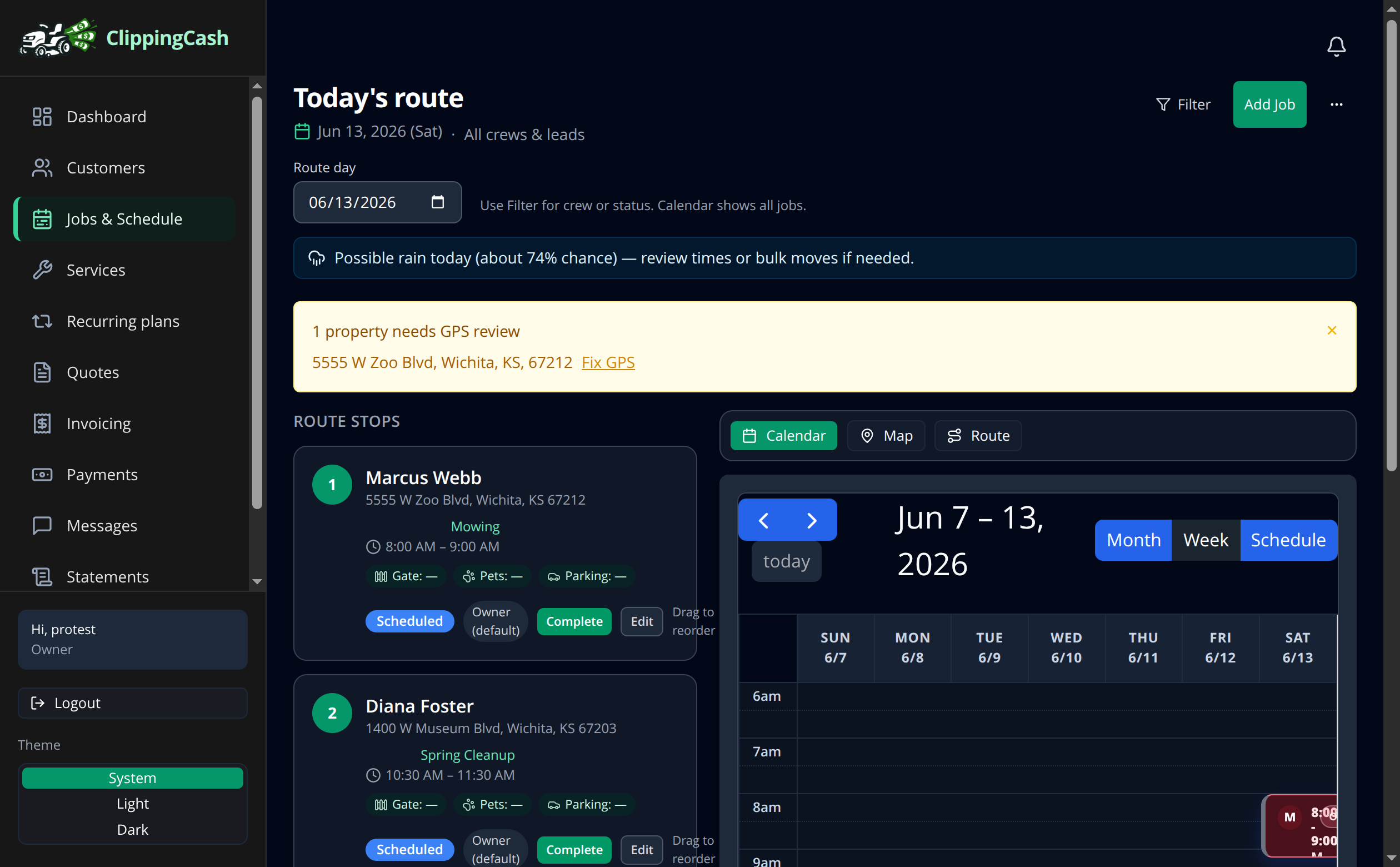
2 Preview the optimized route
Pick the day, choose one crew or all crews, and click Optimize Route. The owner, an admin or an office worker can do this.
ClippingCash works out an order that cuts drive time and keeps your commitments:
- Appointment times hold. A visit booked for an exact time is reached within about 30 minutes either side of it. A visit with a preferred window (morning, afternoon or evening) is reached inside that window. A crew that gets there early waits.
- Visit length counts. Each stop is planned for the first of these that applies: the job’s own duration if you set one; the learned length for that property, if you turned that on and it has at least 3 recent visits; the service’s typical time on site; and otherwise an hour.
- Crews leave at their start time and take lunch if you set one, inside the window you gave it.
- Big days work. There is no small stop limit. Up to 80 addresses go into one preview; past that, it asks you to optimize one crew at a time.
With all crews selected, the work is balanced so crews finish around the same time. Jobs nobody is assigned to yet are shared out between the crews. Jobs already assigned to a crew or a worker stay put unless you tick Allow moving jobs between crews.
3 Read the preview, then apply
Nothing changes until you click Apply. The preview shows:
- what the new order does to your driving: Saves N min of driving, with how many fewer miles. If the new order drives a little more, it says why, such as to meet every time window or to balance work across crews,
- each crew’s stops in order, with when it leaves, its drive time and a finish estimate (“Leaves 7:00 AM, 84 min drive, done around 3:40 PM”),
- the Lunch row, with its start time and length, where the crew would take it,
- Can’t fit for a stop whose time window can’t be met, or whose address has no map pin, each with a sentence naming the customer. These keep their place after the crew’s planned stops,
- Reached late for any stop the plan still reaches after its window closes, named so nothing is hidden.
If today’s order is already as good, it says Already the best order we found. and keeps it.
Click Apply to save the order. If someone changed the day’s jobs while you were looking, ClippingCash asks you to preview again instead of saving a plan that no longer matches.
Optimizing in the middle of the day
Planning today after the crews are out? The plan starts from the current time, and a crew with a start point that has finished stops leaves from the last one it completed, then still ends at its start. Completed stops are left alone. On future days, and today before a crew’s start time, plans leave at that crew’s start time (7:00 AM if you haven’t set one).
Good to know
- On the Route view, each crew has its own road-following line in its own color, and each line starts and ends at that crew’s start point. While the route loads, the drive-time and distance tiles show a loading state instead of an error.
- The minutes and miles the Optimize Route preview says it saves use the same drive totals as the drive-time and distance tiles. Expect small rounding differences, not an exact match.
- Drive times come from road routes at typical road speeds, and the preview tells you how they were worked out. Leave room for a bad traffic day.
- A property with No GPS can’t be placed on the route. Fix it on the Properties page first.
- You can still drag stops by hand after applying, for the one or two constraints only you know about.