Card payments get you paid faster than waiting on checks. ClippingCash uses Stripe to process cards, and you keep every dollar you charge. You only pay Stripe’s standard rate, never a cut to us. Here is how to turn it on.
1 Connect Stripe once
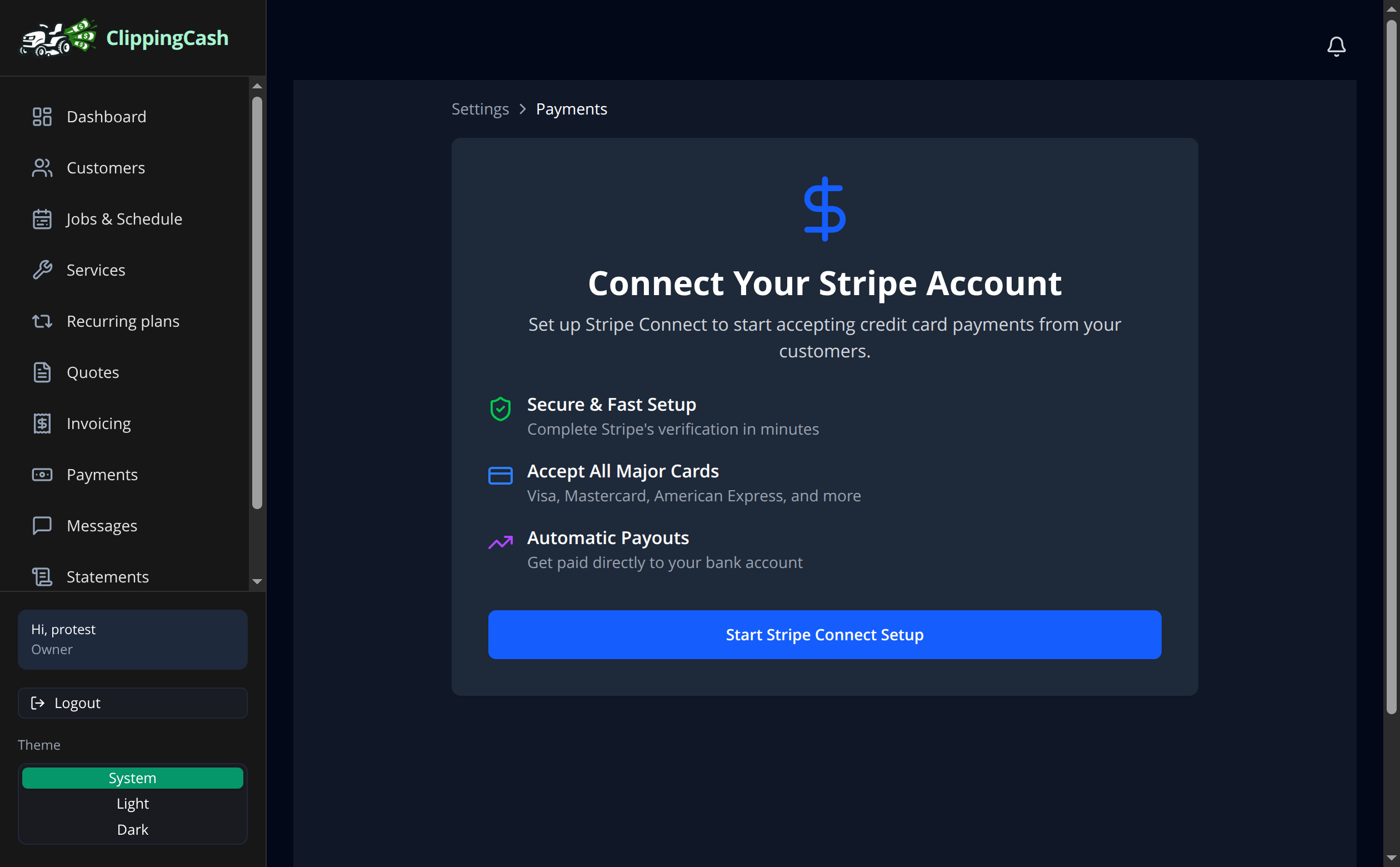
Go to Settings and open Stripe & payment settings, then click Start Stripe Connect Setup. Stripe walks you through a quick verification so payouts land in your bank account. You only do this once.
2 Get paid by card
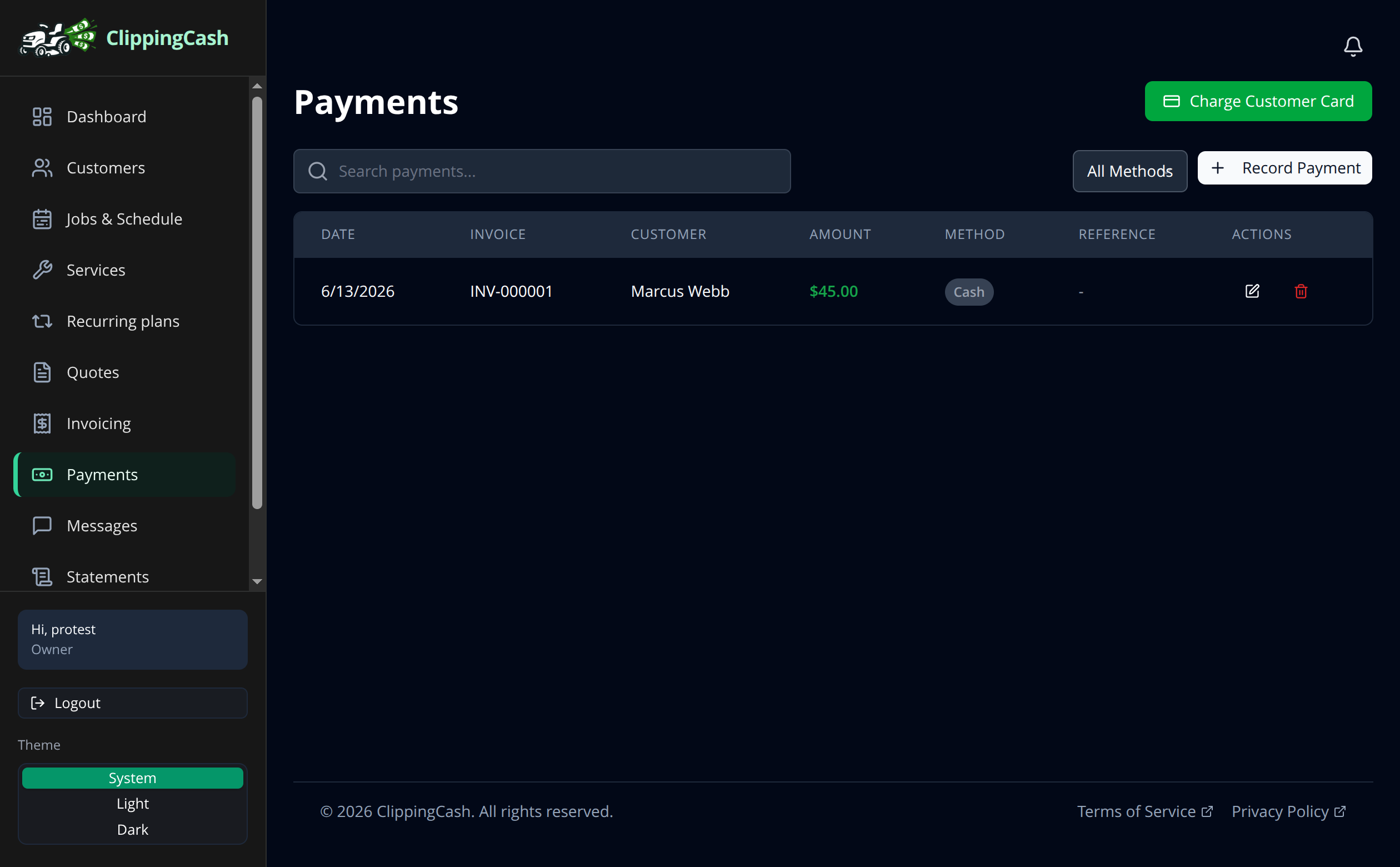
Once Stripe is connected, customers can pay by card straight from their invoice or the customer portal. The card form uses ClippingCash colors and follows light or dark mode, so it looks like the rest of the page rather than a stock Stripe box. Every payment shows up under Payments with the date, customer, amount, and method, so your books stay current without any extra entry.
Customers who would rather pay from their checking account can pick a bank account on the same pay page. Stripe’s rate for that is 0.8%, capped at $5. See how to take bank payments.
3 Take a card in the field
Your crew can take cards at the property from the worker app on iPhone or Android, once Stripe is connected:
- Charge a card. On the job, record a payment and pick Credit Card. The crew can charge the card the customer already has on file, or type a new one into Stripe’s secure form. The app never stores card numbers. A tip goes in its own Tip field, for a card charge as well as cash or check: the card is charged the bill plus the tip, and the tip is recorded for the crew instead of on the invoice.
- Save the card for next time. Save card for autopay at the bottom of the job saves the customer’s card with their agreement and turns on autopay, so later invoices are charged without anyone asking.
A crew member can only do either for a customer on one of their own jobs. If the customer pays by card on your own Square or other reader instead, record it as Card (other terminal): nothing is charged in ClippingCash.
On the Android owner app, open an unpaid invoice and tap Charge card on file to charge a saved card. You can change the amount for a partial payment. On iPhone, use the web app in Safari.