A statement is a tidy summary of what a customer was charged and what they paid over a stretch of time. It is handy at month end, or when a customer asks for the full picture. ClippingCash builds it in a couple of clicks.
1 Choose a customer and a range
Go to Statements. On the Single Statement tab, pick the customer, then choose a date range. Use a quick preset like Last Month or This Year, or set your own start and end dates.
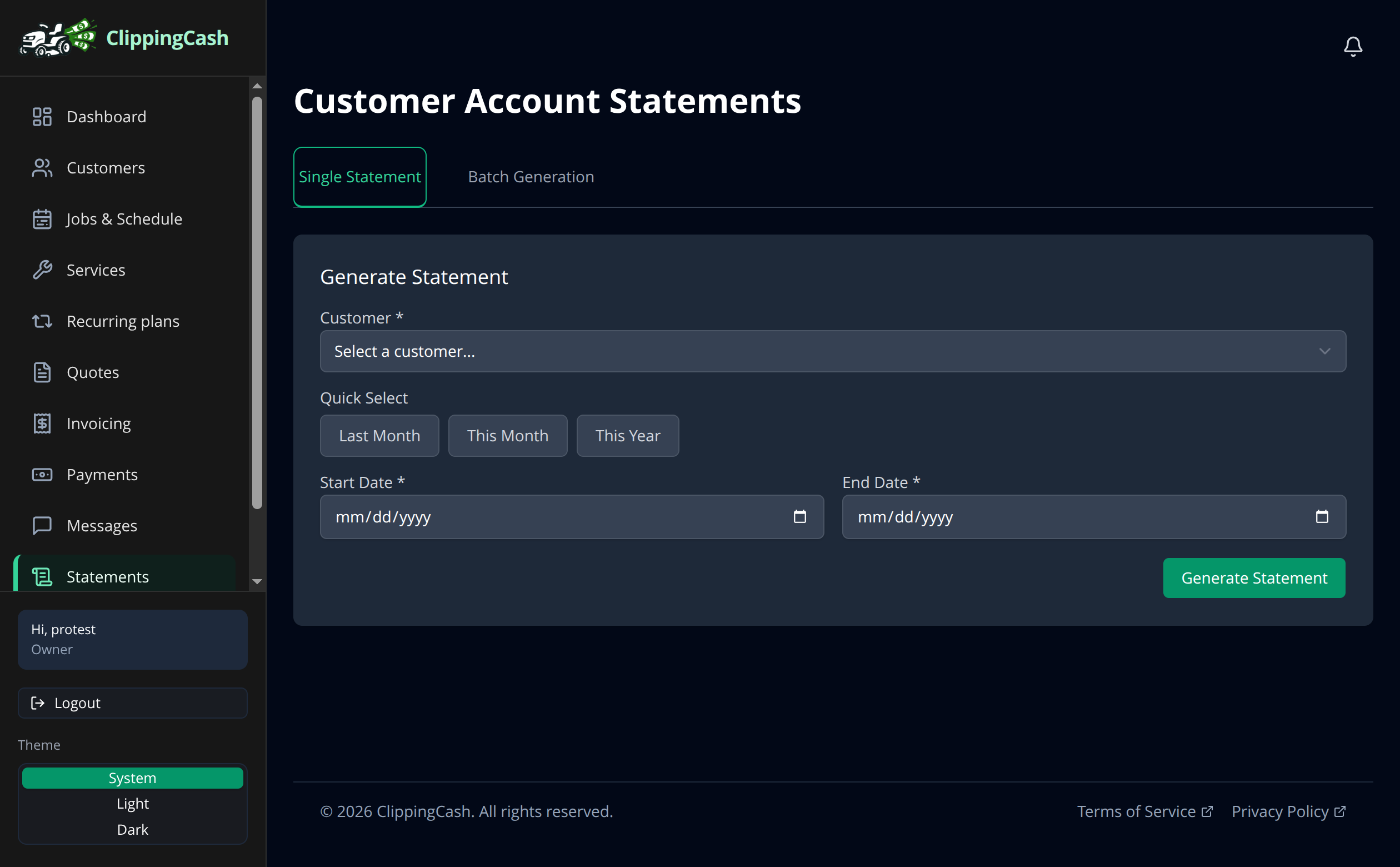
2 Generate and share
Click Generate Statement to build a clean summary of charges and payments for that period, which opens as a PDF in a new tab to print. To send it, click Email to customer and the customer gets that statement as a PDF straight away. If the customer has no email address on file, ClippingCash says so plainly instead of failing quietly.
A short statement fits on one page. A longer one prints Page 1 of 3 and so on, and every page after the first is headed ACCOUNT STATEMENT (CONTINUED), so a loose page is never a mystery. Invoice PDFs number their pages the same way.
3 Do the whole list at once
The Batch Generation tab builds a statement for every matching customer. Choose how they go out:
- Email where possible, print the rest (the default). Each customer with an email gets their own statement as a PDF. Customers with no email, or who opted out of email, go in one PDF for you to print.
- Print all. No emails. Every statement goes in one PDF to print.
Click Generate Batch Statements and the batch runs in the background with a progress bar, so you can keep working. When it is done it shows how many were emailed and how many are in the print PDF, with a download link for that PDF. Anyone already emailed a statement for the same dates is skipped, so nobody gets two. If an earlier statement email for those dates bounced or never reached the customer, the batch puts them in the print PDF instead of counting them as emailed. A batch is not cut off at 100 customers.
Rows run in the order the money moved. An invoice is dated by its issue date, or its service date when that is earlier, so a visit you billed in advance and the customer paid early no longer prints the payment first with a negative running balance. Same-day invoices print before payments. Each line reads plainly, for example “Mowing 1 × $52.50”, and the Generated time is in your company’s time zone. A card payment shows the last four digits, such as Card ending 4242, or Paid automatically, card ending 4242 when autopay took it, the same way a check shows its number.
4 Every statement ends with what is still owed today
A statement used to answer only “what happened in this period”, and that is a genuinely bad question to put in front of somebody who owes you money from July. A debt older than the period was never itemised, so the longer an invoice went unpaid, the weaker the document chasing it got.
Now every statement closes with the current position: the aging summary and the amount due always, and the unpaid invoices themselves listed underneath unless you untick List unpaid invoices at the bottom.
That closing section is not limited to the date range. A 96 day old invoice shows up on a statement for last month, with its age next to it, which is the whole point.
On a long statement, each section’s subtotal prints once, at the end of that section, rather than repeating at the bottom of every page.
5 Two numbers that look like a contradiction and are not
A statement can read Balance at period end $250.00 and Amount due $0.00 at the same time, and both are correct.
A statement includes payments made after the end date, so an August statement printed in September shows the September payments against those August invoices, marked as received after. Only the part of a later payment that went to invoices on this statement counts; a payment toward next month’s bill, or credit the customer has not spent yet, stays off it. The period-end balance is the historical record. The amount due is what they owe you now. Printing only the first would send a bill for money you already have.
6 Which button when you are chasing money
On Batch Generation there are two buttons and they pick customers on completely different grounds:
- Generate Batch Statements is the period record for the dates you set above, emailed or printed as you chose. Use it for the month-end run.
- Print for everyone who owes ignores those dates entirely and picks customers by what they owe today. It catches the unpaid invoice from months ago with no recent activity, and it skips anyone who has since paid.
So: month-end paperwork, use the first. Chasing money, use the second. Most operators want the second more often than they think.