When a job is completed, ClippingCash can generate an invoice automatically. When the customer pays, you record it here so your unpaid balances and reports stay accurate. Here’s how.
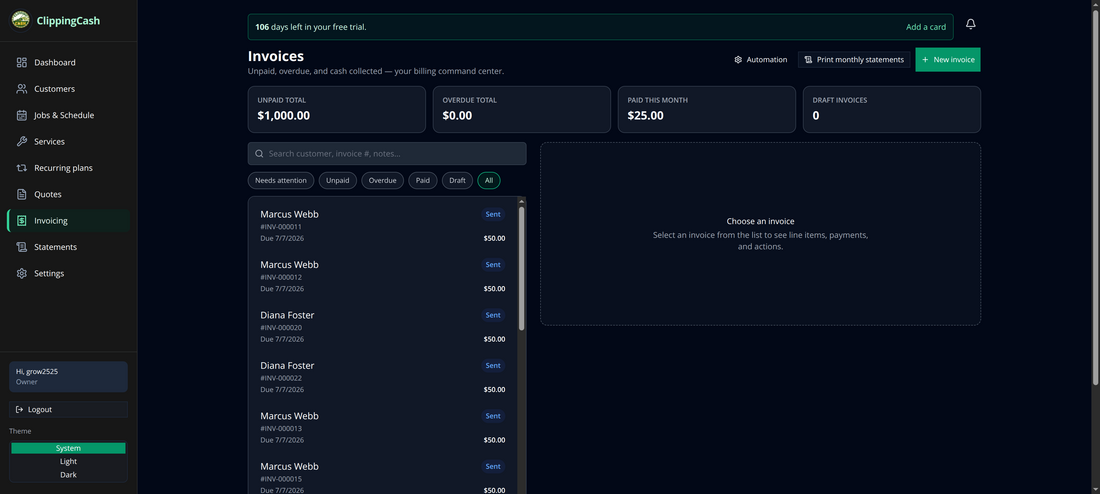
1 Open Invoicing
Go to Invoicing. The top of the page shows your unpaid, overdue, and paid totals, with a filterable list of every invoice and its status.
2 Open the invoice and choose “Record payment”
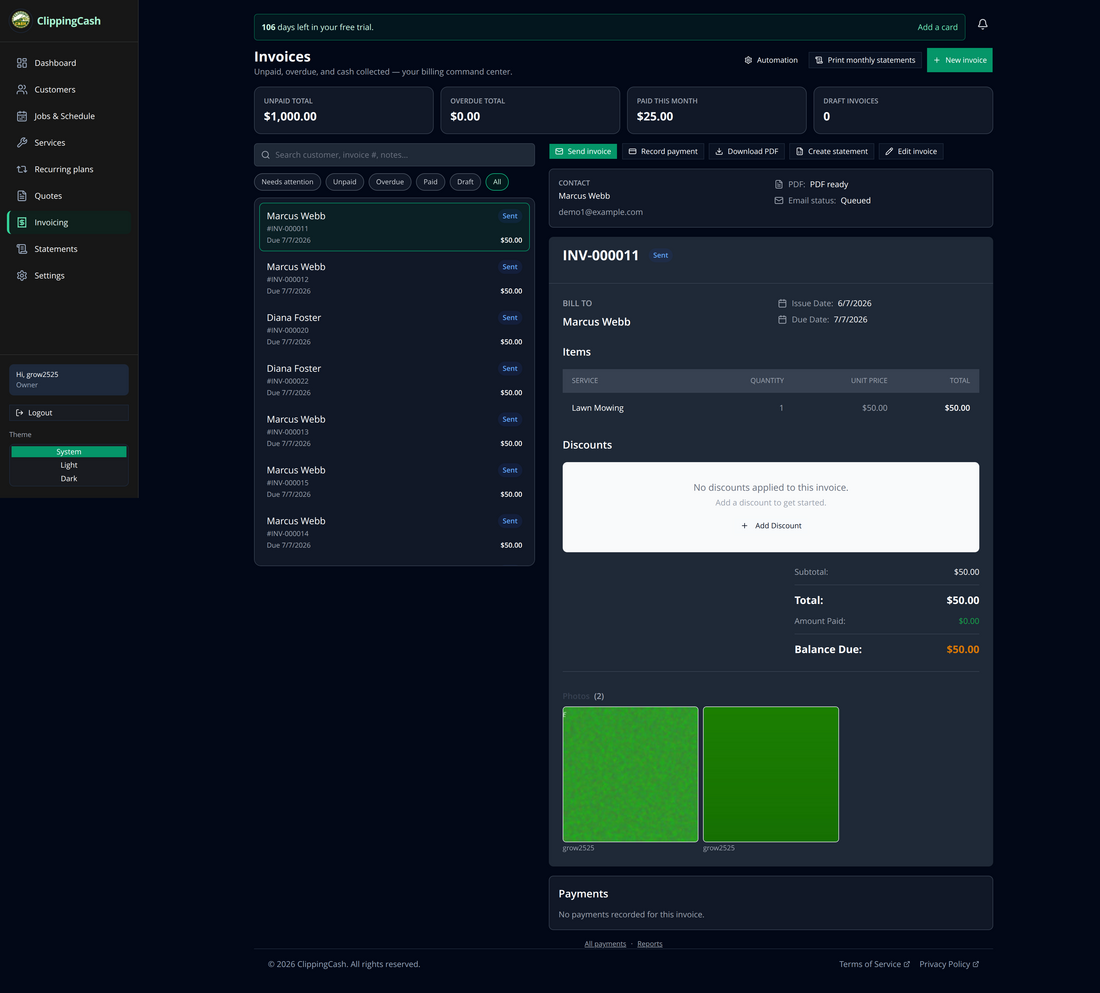
Click an invoice to see its line items, balance due, and the job photos attached to it. Then click Record payment.
3 Enter the payment
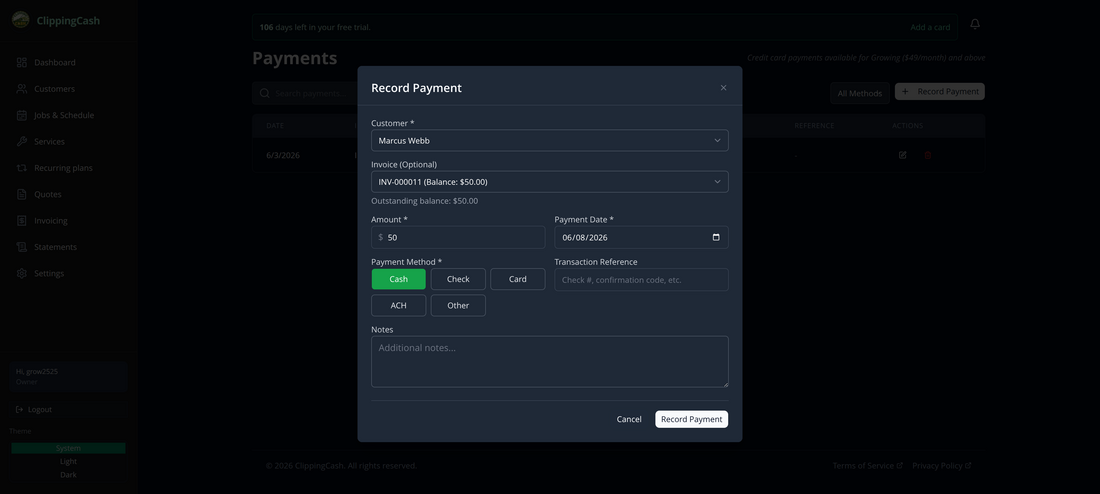
The customer is pre-filled, and Total received starts at the balance due. Pick the payment method (Cash, Check, Credit Card, Card (other terminal), ACH Transfer, or Other), set the date, add an optional reference (a confirmation code, for example). For a check, the check number is required, see how to record a check payment, and click Record Payment.
ACH Transfer is for a bank transfer the customer sent you outside ClippingCash. A customer who pays from their bank account on your invoice pay page or in the portal is recorded for you as Bank account once the payment clears, so do not enter it here as well (how bank payments work).
Total received is everything the customer handed you, tip included. It is the amount on the check. The Tip field is the part of that total that goes to the crew, not toward the bill. Say a customer pays a $50 visit with a $55 check that includes a $5 tip: enter Total received $55 and Tip $5. The invoice is credited $50 and the $5 is tracked as the crew’s tip.
Two warnings can appear before you save:
- When the total is more than the invoice. You will see “$X more than this invoice. If it is a tip, enter it under Tip; otherwise it becomes the customer’s credit.” Move the tip into the Tip field, or leave it and the extra is kept as credit on the customer’s account.
- When no invoice is picked. The payment is recorded as credit on the customer’s account instead of against an invoice.
Card (other terminal) is for a card you ran on your own reader, such as Square. ClippingCash only records it: nothing is charged here and you do not need Stripe connected. It shows as Card (other terminal) in your payments, exports and year-end package, and as plain Card on the customer’s statement, receipt and portal. Give that money back on the same reader and log it with Record refund, see how to refund a payment.
If the save fails, for example because the connection drops, the payment is not recorded twice when you try again. Check the Payments list before you re-enter it, and you will see either one payment or none.
4 Done — the payment is logged
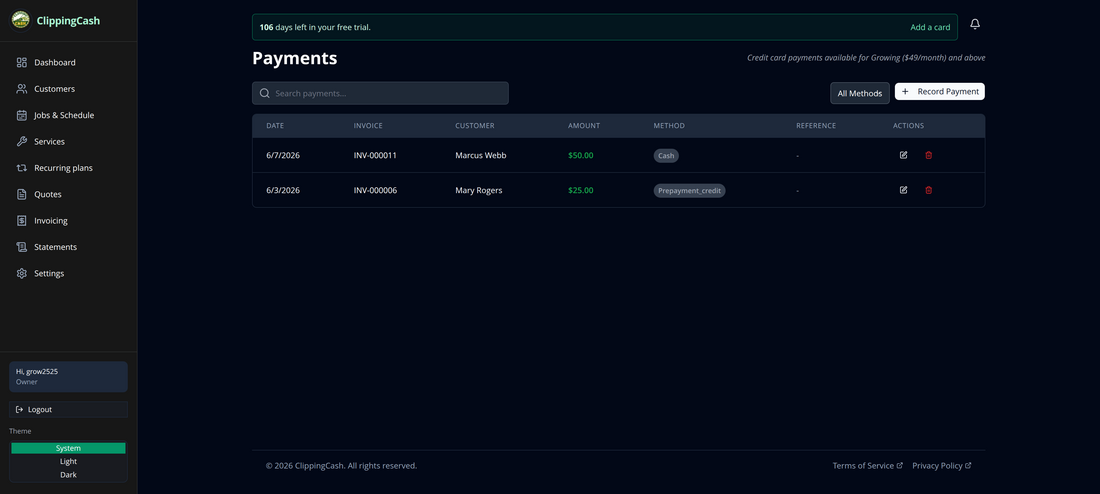
The payment appears in your Payments list, the invoice balance updates, and your paid totals move accordingly.