A quote lets a customer approve the work and price before you ever show up. In ClippingCash you can build one, send it, and convert an approved quote straight into a scheduled job. Quotes are optional, though: if the price is already settled, you can add a recurring plan or schedule a one-off job without one. Here’s how quoting works when you want it.
1 Start a new quote
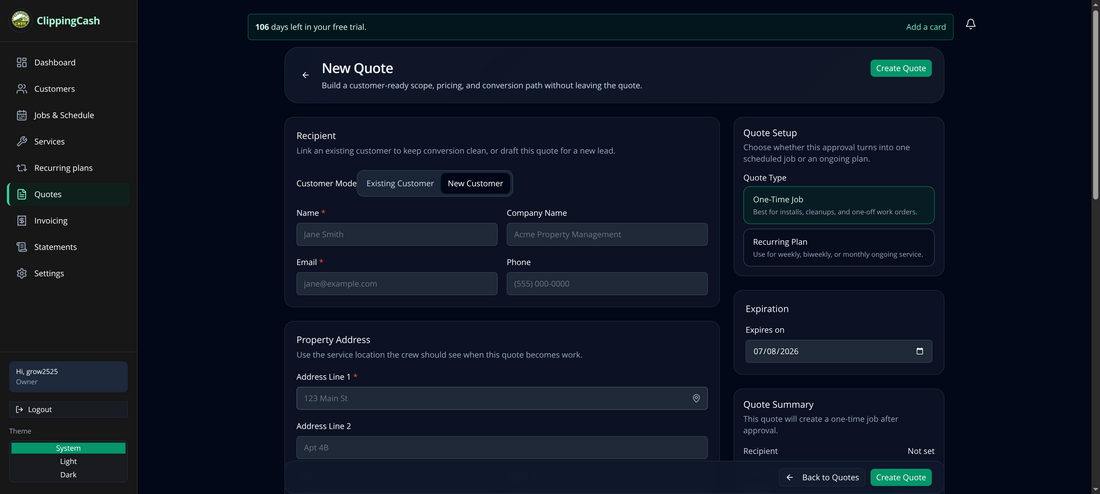
Go to Quotes and click New Quote (you can also use New Quote from the dashboard). Quoting a property you already have on file? Click Add quote on it instead, from the customer’s Properties tab or from the Properties page, and the quote opens with the customer and service address filled in. The builder lets you set the recipient, the property, line items, and how the quote converts after approval.
2 Pick the customer and add line items
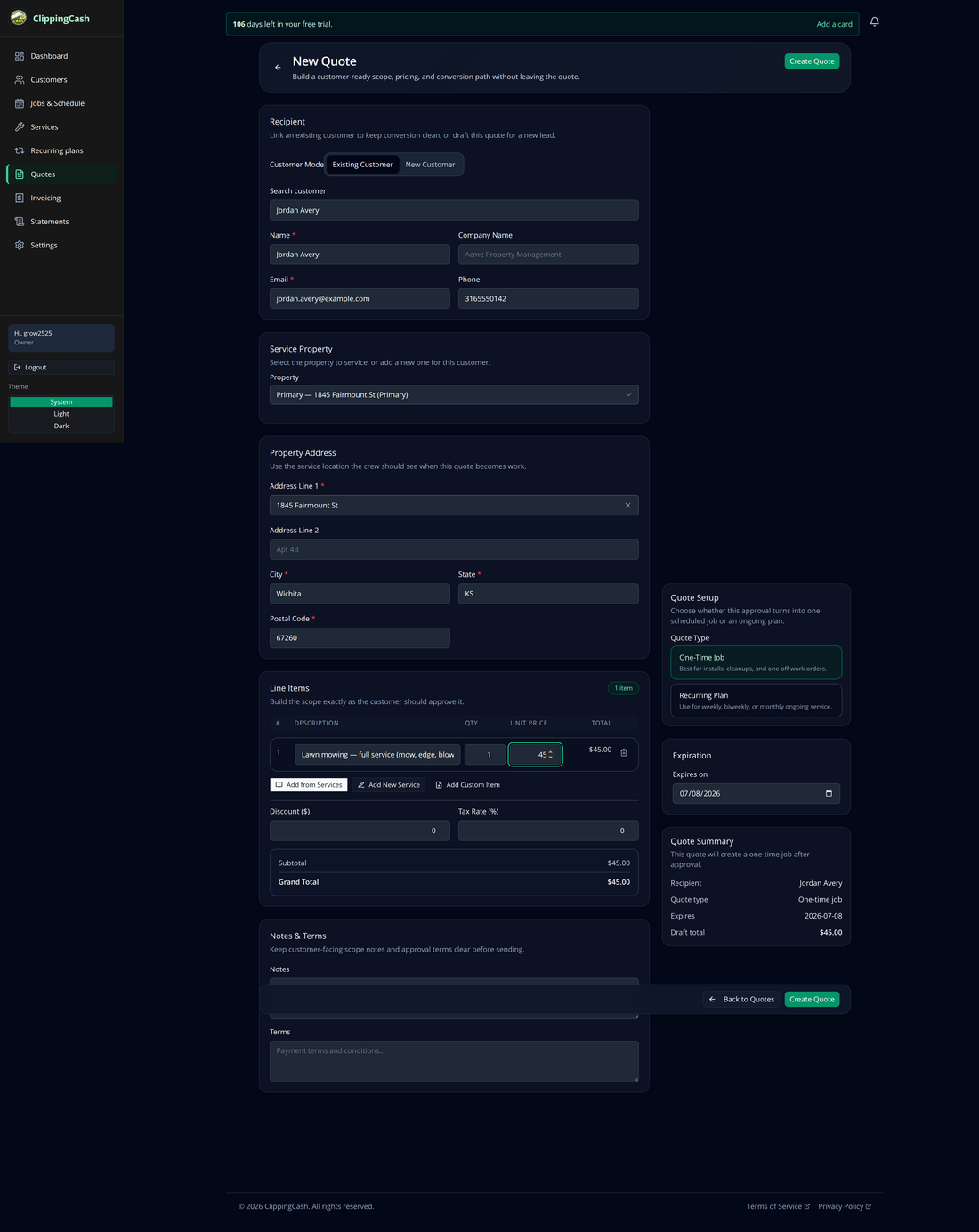
Switch to Existing Customer and search for the customer: their address and property fill in automatically. Then add line items with Add Custom Item (or pull from your saved services). Each item has a description, quantity, and unit price; the totals update as you go.
A service you add is priced the way that customer is already billed: the property’s own price for that service if it has one, else the customer’s price, else your standard price. So a customer you mow for $55 is quoted $55, not your $45 catalog rate, the same price their recurring plan and invoices use.
3 Review the quote
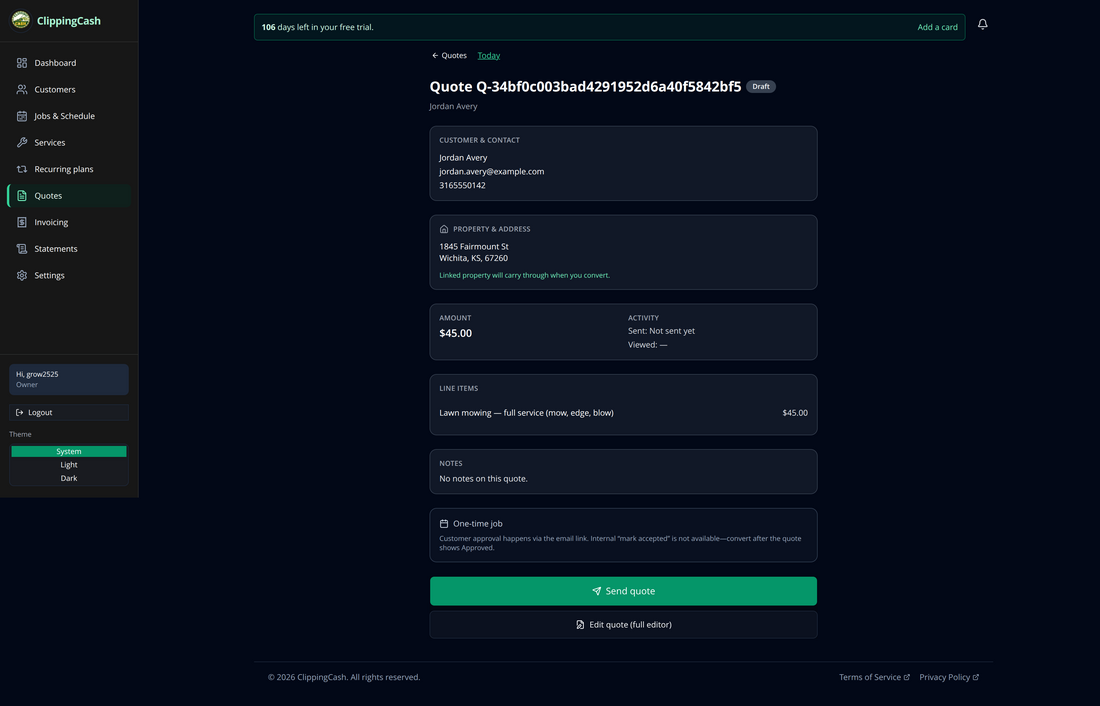
Click Create Quote to save it as a Draft. You’ll see a clean summary — customer, property, amount, and line items — with options to send or keep editing.
4 Send it to the customer
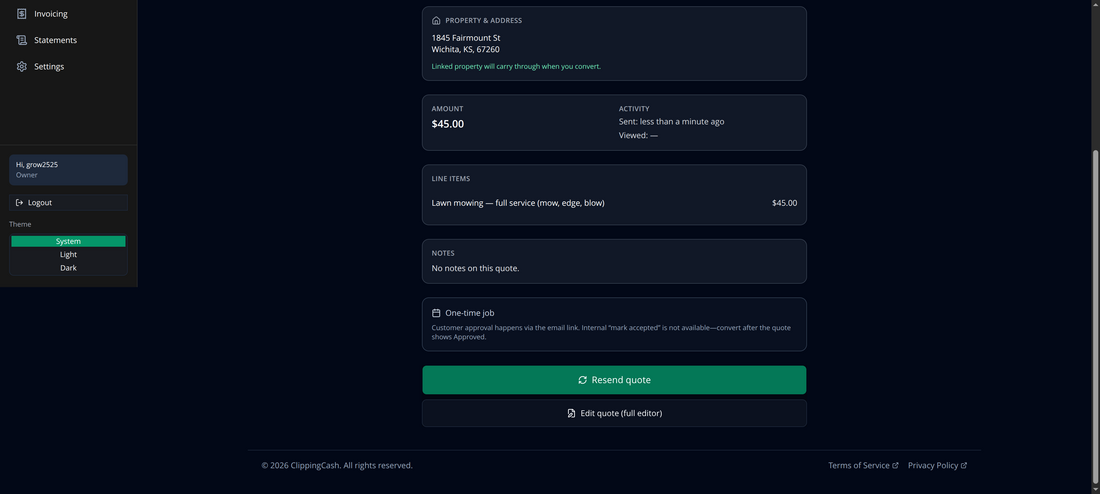
Click Send quote. The customer gets an email with a link to review and approve it, and the quote’s activity updates to show it was sent.
Quoting seasonal work like a cleanup or mulch? You can put three priced options on one quote and let the customer pick between them. See how to offer three price options on one quote.