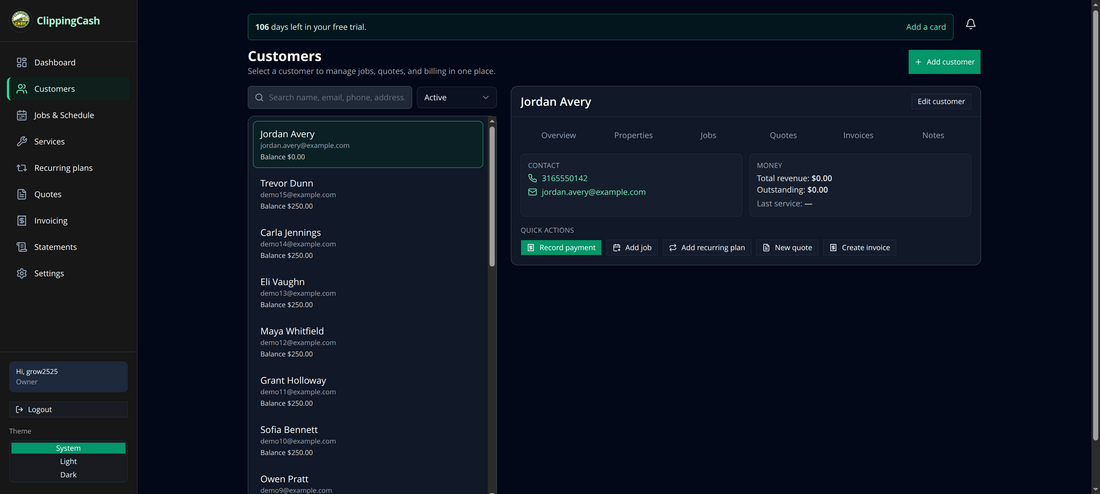
Everything in ClippingCash starts with a customer. Once a customer exists, you can quote them, put jobs on the schedule, and bill them. Here’s how to add one — it takes about 30 seconds.
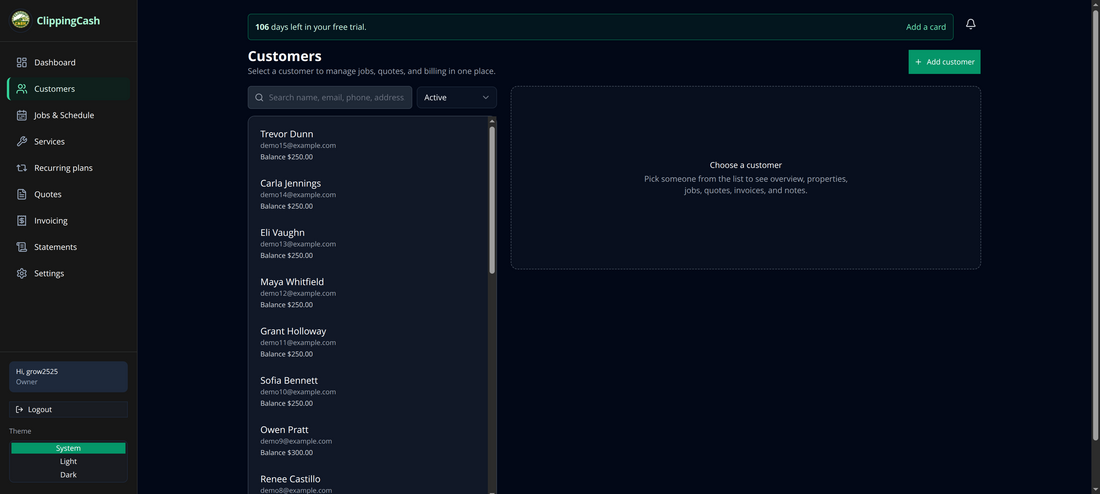
1 Open Customers and click “Add customer”
From the left menu, go to Customers. You’ll see your customer list with a search box and an Add customer button in the top-right.
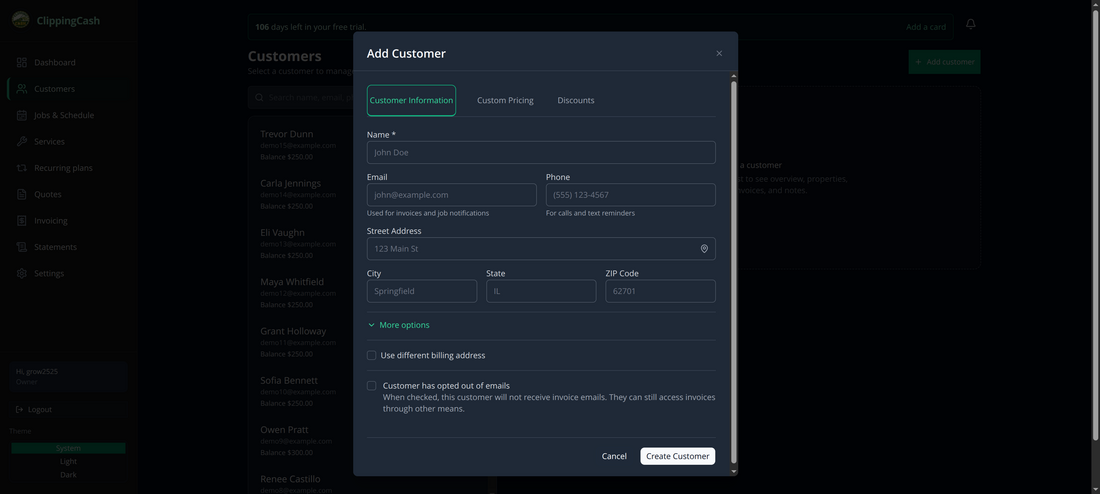
2 Fill in their details
Enter the customer’s name (the only required field), plus email, phone, and service address. The email is used for invoices and job notifications; the phone is used for call and text reminders.
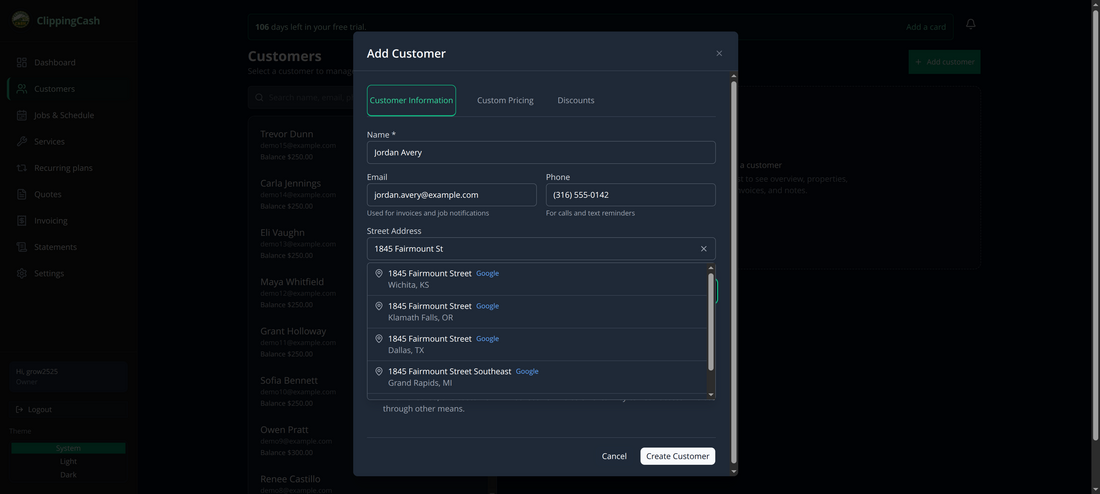
A completed form looks like this. Use More options if the billing address differs from the service address, or to opt the customer out of emails.
Came from a word-of-mouth referral? Pick the customer who sent them in Referred by. It is optional, and you can set it later by editing the customer. The customer’s page then shows who referred them, and the referrer’s page shows Referred N customers, with the date of each one and whether they have paid their first invoice. ClippingCash keeps track of who referred whom; it doesn’t hand out referral credits for you, so any thank-you is yours to give.
Customers can also send you their own details. See how to take quote requests online: requests wait in an inbox, and a customer you make from one keeps the Referred by they came with.
3 Create the customer
Click Create Customer. They appear at the top of your list immediately, ready for quotes, jobs, and invoices.
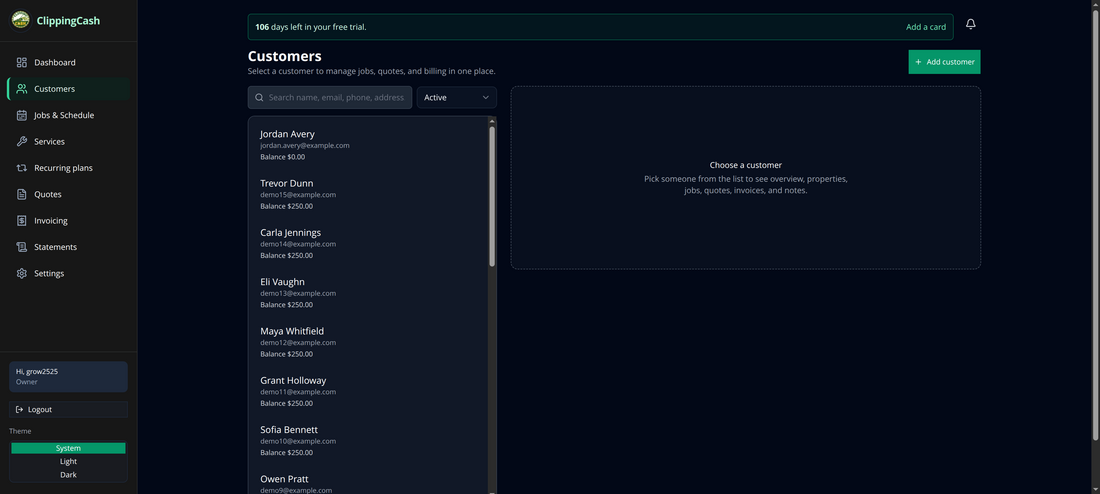
Click their name to open their profile, where you’ll see overview, properties, jobs, quotes, invoices, and notes all in one place.