The customer portal is a branded page where your customers log in to see their quotes, invoices, and job history, and pay online. It looks like your business, not ours, and it cuts down on the “did you get my invoice?” calls.
1 Invite a customer
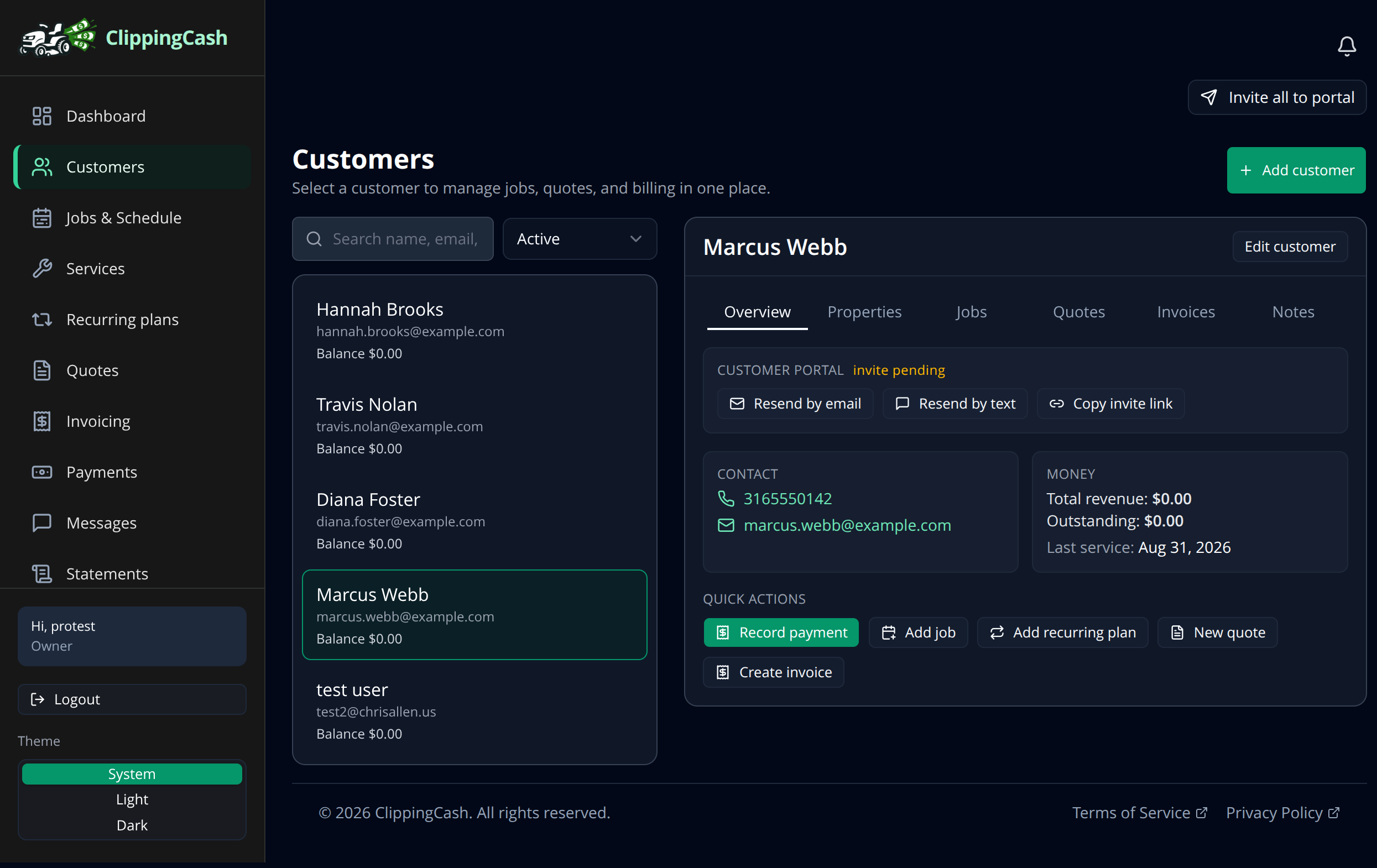
Open Customers and pick a customer. In the Customer Portal section you can invite them by email, by text, or copy an invite link to send however you like. To onboard everyone at once, use Invite all to portal at the top of the Customers page.
2 What your customer sees
When they accept, the customer gets their own portal under your business name. They can review quotes, approve work, see their invoices and job history, and pay by card. Less back and forth for you, a more professional experience for them.