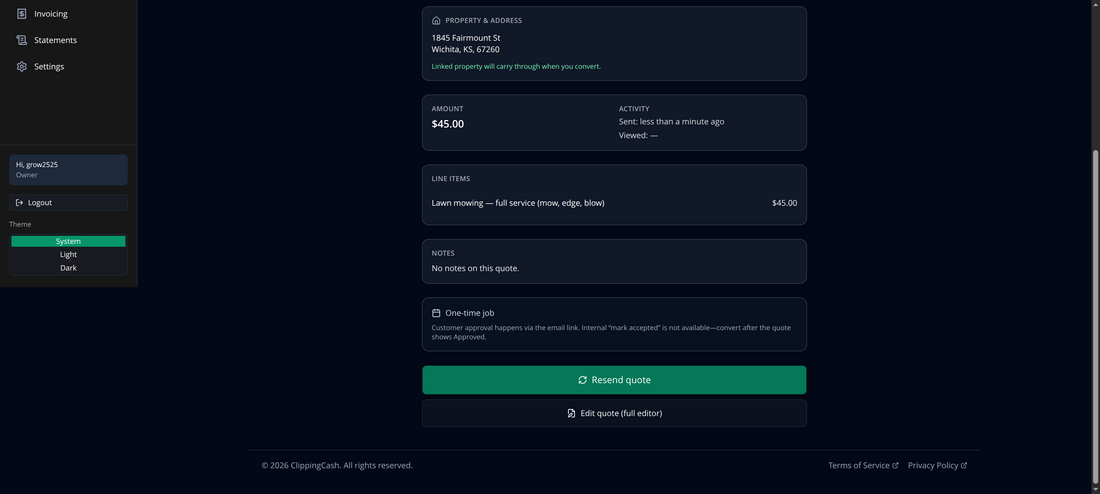
A quote lets a customer approve the work and price before you ever show up. In ClippingCash you can build one, send it, and convert an approved quote straight into a scheduled job. Here’s how.
1 Start a new quote
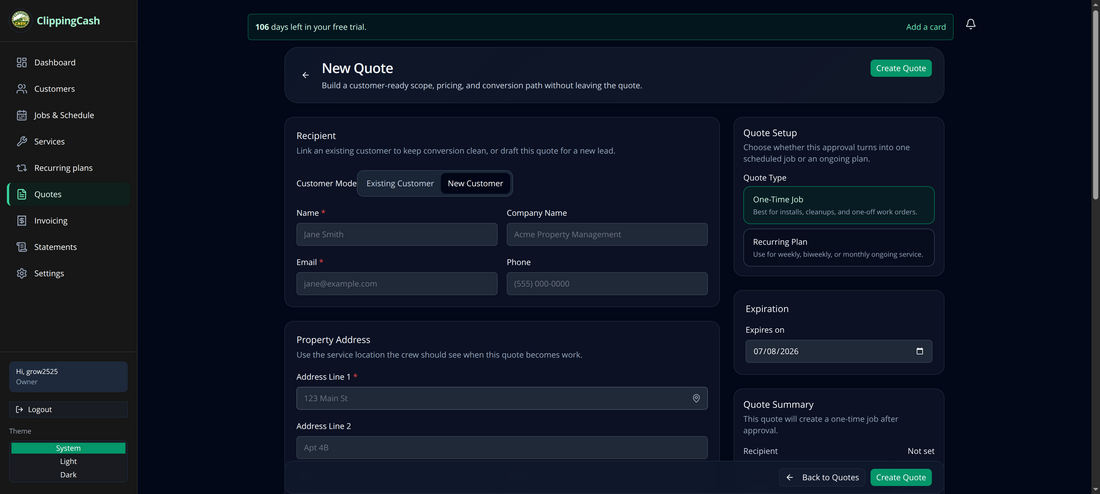
Go to Quotes and click New Quote (you can also use New Quote from the dashboard). The builder lets you set the recipient, the property, line items, and how the quote converts after approval.
2 Pick the customer and add line items
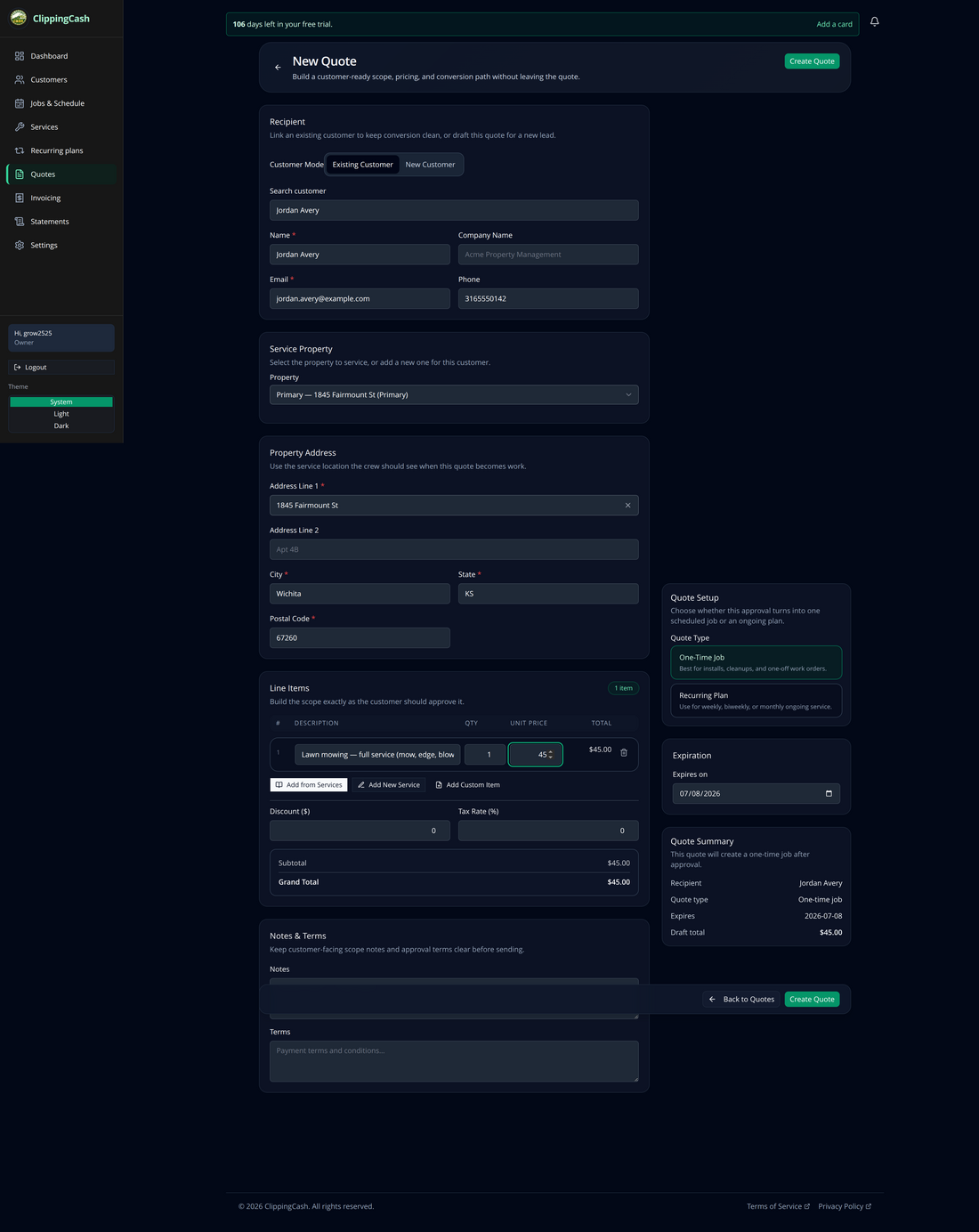
Switch to Existing Customer and search for the customer — their address and property fill in automatically. Then add line items with Add Custom Item (or pull from your saved services). Each item has a description, quantity, and unit price; the totals update as you go.
3 Review the quote
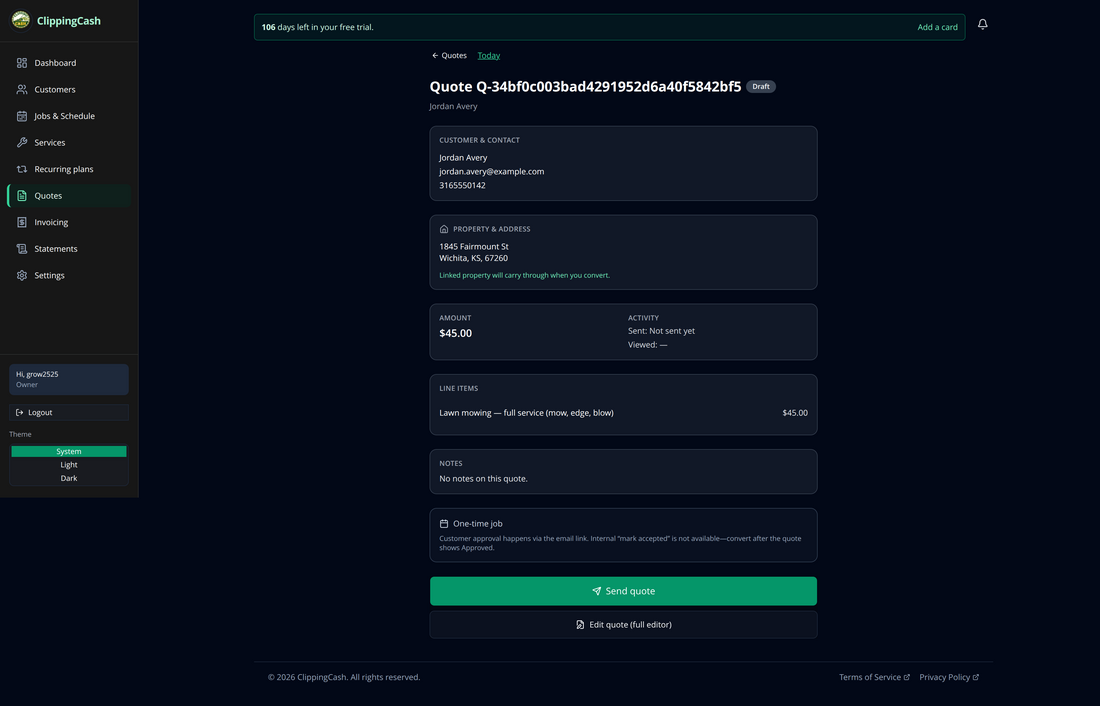
Click Create Quote to save it as a Draft. You’ll see a clean summary — customer, property, amount, and line items — with options to send or keep editing.
4 Send it to the customer
Click Send quote. The customer gets an email with a link to review and approve it, and the quote’s activity updates to show it was sent.