As your crew grows, add your people to ClippingCash so you can assign jobs, track who is where, and keep the right access on the right hands. Inviting a team member takes a few seconds.
1 Invite a field worker
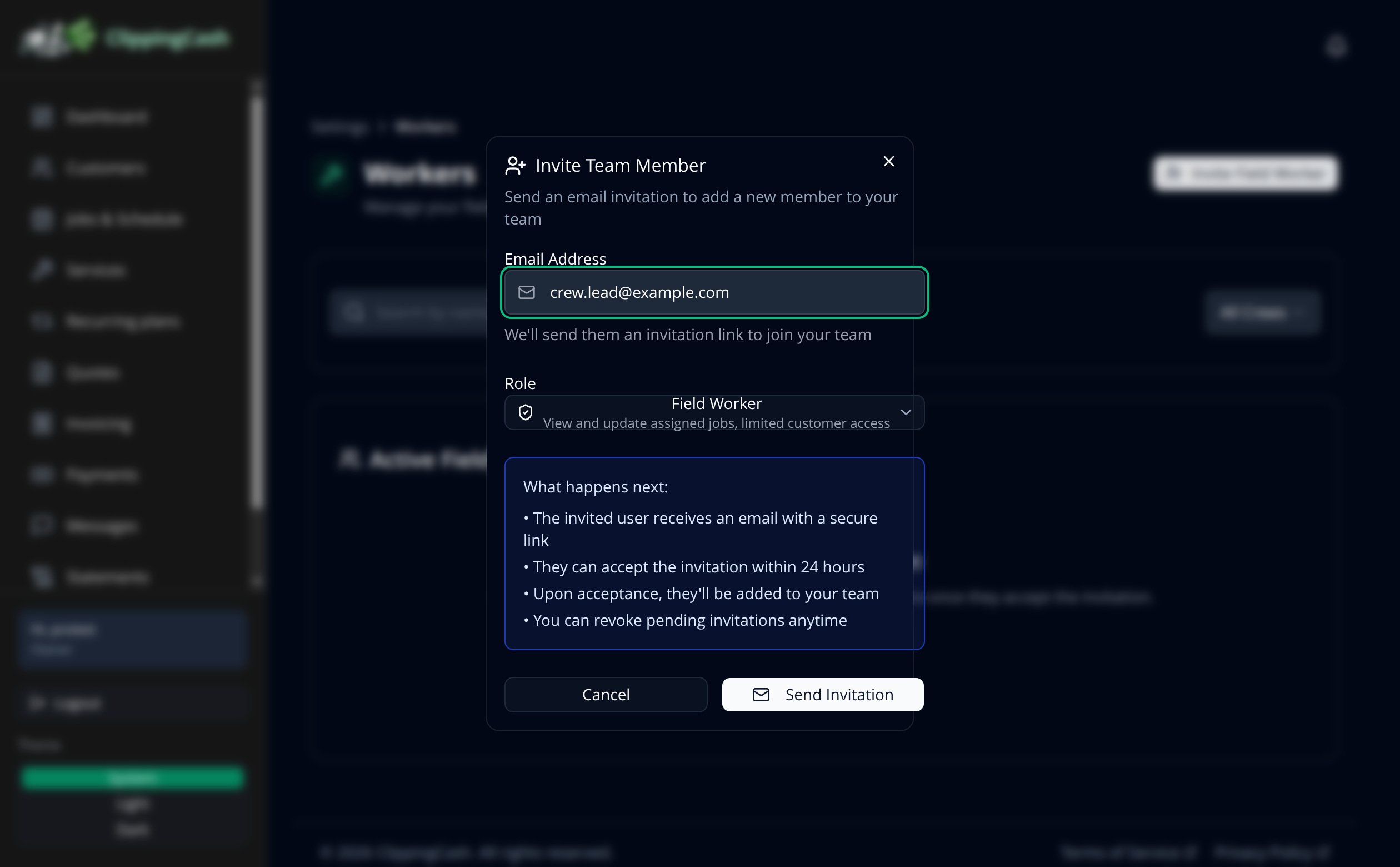
Go to Settings, open Workers under Team, and click Invite Field Worker. Enter their email and pick a role. A field worker can view and update their assigned jobs with limited customer access, which is just what most crew need.
2 Assign and go
Your worker gets an email invite and joins once they accept. From there you can assign them to jobs and crews, and they show up as an option when you schedule work. Manage roles and access anytime under Roles & permissions.